How to download your sent and received SMS logs
Why you may need this
We are making this change to comply with the Protection of Personal Information Act (POPIA). POPIA says personal information must not be kept for longer than it is needed. The text of an SMS often contains personal information about you, your customers or your staff, so we will no longer keep it indefinitely.
We are making this change to comply with the Protection of Personal Information Act (POPIA). POPIA says personal information must not be kept for longer than it is needed. The text of an SMS often contains personal information about you, your customers or your staff, so we will no longer keep it indefinitely.
From Monday 23 November 2026, WinSMS permanently removes the text of every SMS, sent or received, that is more than 90 days old. This includes messages that are already older than 90 days on that date. The rest of each record stays: phone number, date and time, delivery status, credits used and billing.
Important: if you need a record of what was said in your messages, download your logs before 23 November 2026, and regularly afterwards (for example monthly). Once the text has been removed it cannot be recovered, and later downloads will not include it.
You can download logs from three places. Use whichever you normally use.
|
Where |
Sent messages |
Received messages |
|
Client Zone (winsms.co.za) |
Message Logs → Sent Messages → Download Messages |
Message Logs → Received Messages → Download Messages |
|
WinSMS.mobi |
Menu → Sent Log → Tools → Download Sent Log |
Menu → Inbox → Tools → Export Inbox |
|
WinSMS Desktop |
File → Export → Logs |
File → Export → Inbox |
1. Client Zone
(recommended)
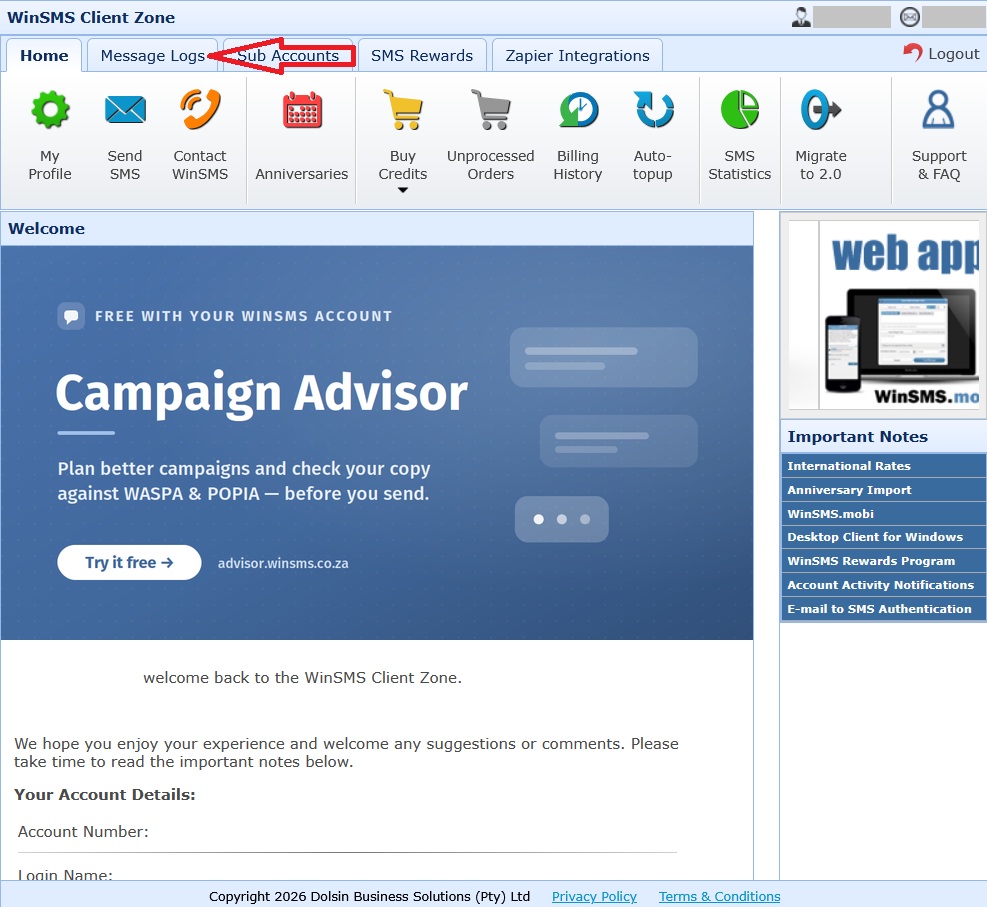
Log in at https://www.winsms.co.za/client-login/ and open the Message Logs tab.
Sent messages
1. Click Sent Messages, then Download Messages.
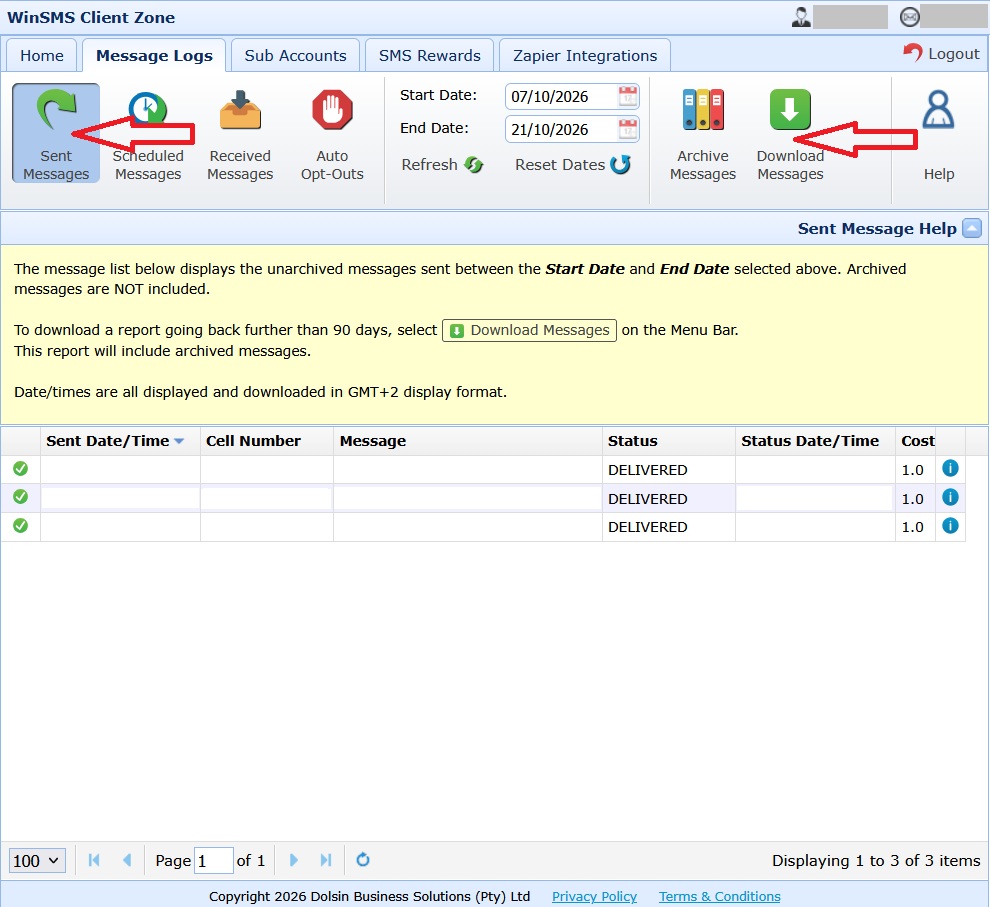
2. Choose the Start Date, End Date and Field Separator.
Sent messages
1. Click Sent Messages, then Download Messages.
2. Choose the Start Date, End Date and Field Separator.
3. If you use sub-accounts and
want their messages too, switch Include Sub Accounts on.
4. Click OK to download a
CSV file. It contains the sent date and time, phone number, message, status,
status date and time, and cost.
The on-screen list only shows the last 90 days. To get older or
archived messages, use Download Messages. From 23 November 2026,
downloads will still include older messages, but without the text once it has
been removed.
Received messages
1. Click Received Messages, then Download Messages.
2. Choose the Start Date, End
Date and Field Separator.
3. Click OK to download the
CSV file.
The received-messages download does not have an Include Sub Accounts
option so, it only covers the account you are logged in to. If you use
sub accounts, log in as each sub-account and download its received messages
separately.
Archiving is not a backup. The Archive Messages button removes messages from the on-screen list. It does not save a copy anywhere. Archived messages are still included when you use Download Messages, so to keep a copy, download them.
Getting received messages as they arrive: you can also have received messages e-mailed to you or forwarded to a cell number. Set this up under My Profile → Replies & 2FA.
If you would like to print your message logs from the WinSMS Client Zone, please click here for step-by-step instructions.
All times are South African time (GMT+2).
2. WinSMS.mobi
Log in at https://www.winsms.mobi
Sent messages
1. Click on Menu.
2. Click on Sent Log.
3. Click on Tools.
4. Click on Download Sent Log.
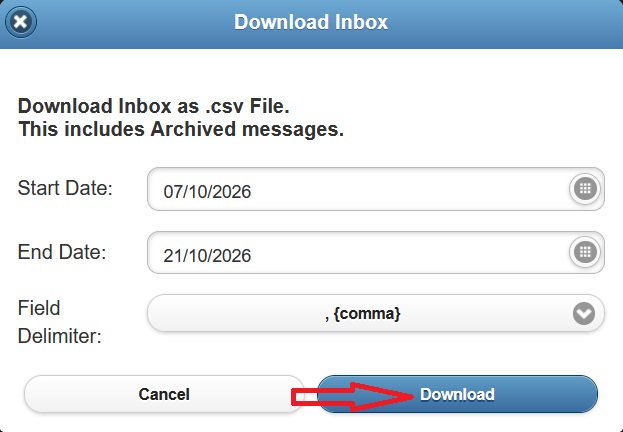
5. Choose the Start Date, End
Date and Field Delimiter.
6. Further click on Download.
Received messages
1. Click on Menu.
2. Click on Inbox.
3. Click on Tools.
4. Click on Export Inbox.
5. Choose the Start Date, End
Date and Field Delimiter.
6. Click on Download.
If you would like to print your message logs from WinSMS.Mobi, please click here for step-by-step instructions.
3. WinSMS Desktop (Windows)
1. Click on File.
2. Click on Export.
3. Choose Logs for sent messages or Inbox for received messages, then click Next.
4. Click to Select where you would like to save your CSV file as well as a Field Delimiter and click Next.
5. Check the summary and click Next
to save the file.
Your local copy: The Desktop app keeps its own copy of your sent and received messages on your computer, with the full message text. The change on our servers does not touch that copy. The Desktop app sends each message to the server once and fetches each received message once; it never downloads them again, so the text on your computer is not replaced. We recommend backing it up regularly (see below), keeping it secure and deleting messages you no longer need.
Backing up the whole database: you can also save a complete copy of your Desktop data (messages and contacts) with File → Backup & Restore → Backup. Choose a folder, keep or change the file name, and click OK. The backup is a single .mdb file that you can restore later with File → Backup & Restore → Restore. It also contains personal information, so store it securely.
If you would like to print your message logs from the WinSMS Desktop Software, please click here for step-by-step instructions.
Keep your downloads safe
Your downloaded logs contain phone numbers and message text, which
is personal information. Store them somewhere secure, share them only with
people who need them, and delete them when you no longer need them.